After logging into Boosterberg, you will land on the Dashboard Page.
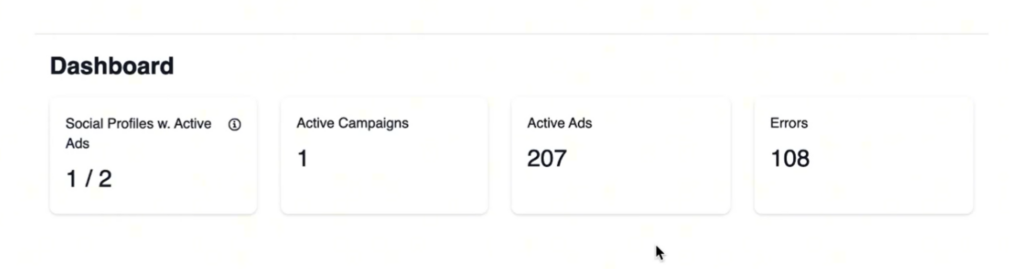
At the top of the Dashboard, you’ll see four key metrics displayed as frames:
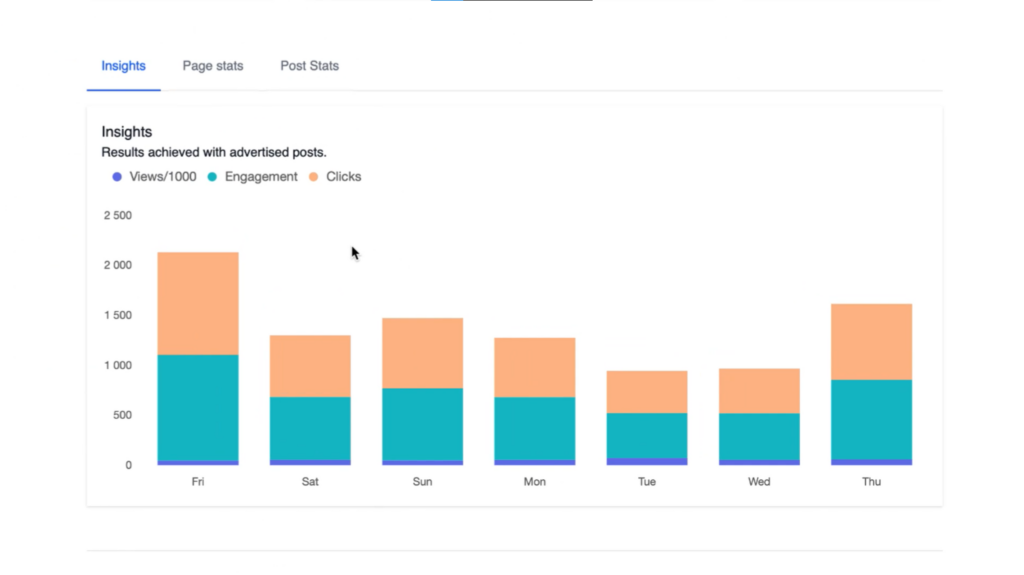
Below the performance metrics, you’ll find three graphs that provide key insights into your campaign performance:
Data is updated daily, showing statistics from the previous seven days.
Scrolling further down, you’ll find Quick Access Buttons, allowing you to:
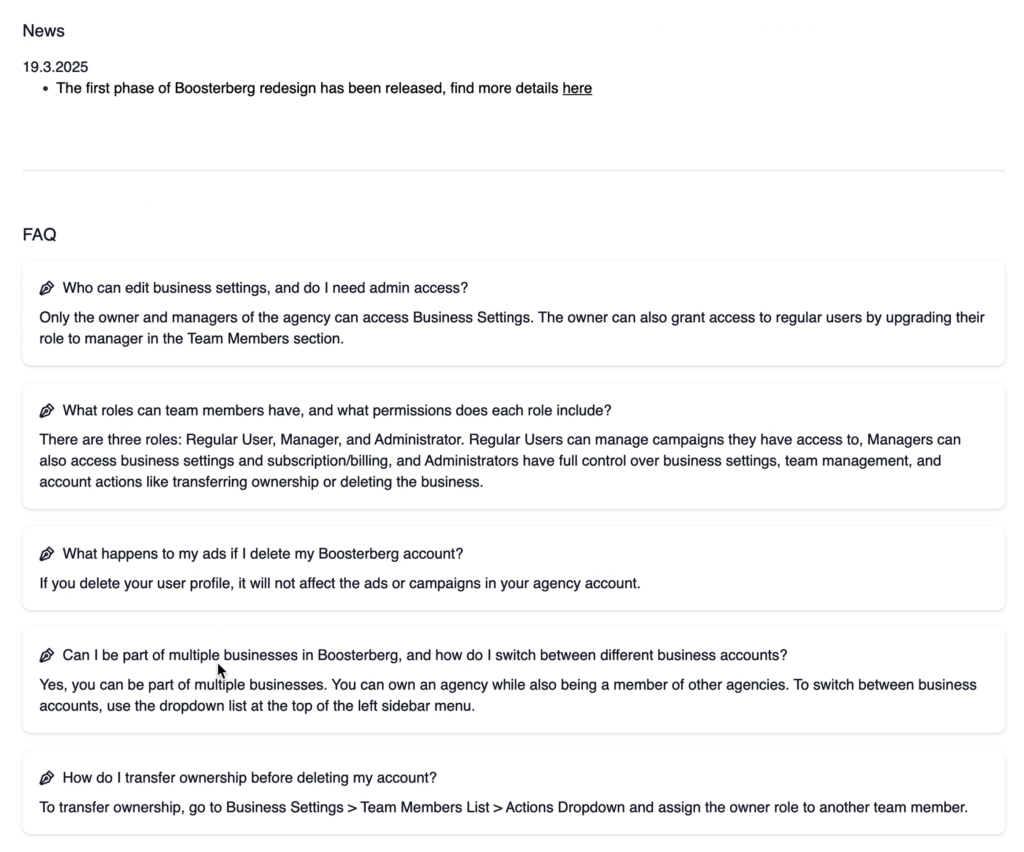
At the bottom of the Dashboard, you’ll find:
No, data cannot be filtered to a specific day. The Dashboard updates daily and displays stats from the previous seven days (e.g., on Monday, you’ll see data from last Monday to Sunday).
Some errors require action to fix, while others are simply notifications about your campaign setup, post issues, or budget constraints. Not all errors will impact ad performance, but it’s important to review them to understand whether any adjustments are needed.

Clicking on the Errors Frame takes you to a filtered list of campaigns that have errors. When you open the Error Log for a campaign, you’ll see a description of the issue. If you need further clarification, Boosterberg Support can help explain the error in more detail.
Yes, Social Profiles include both Facebook Pages and Instagram Accounts.
Subscribe to our newsletter for updates on Boosterberg news and features.